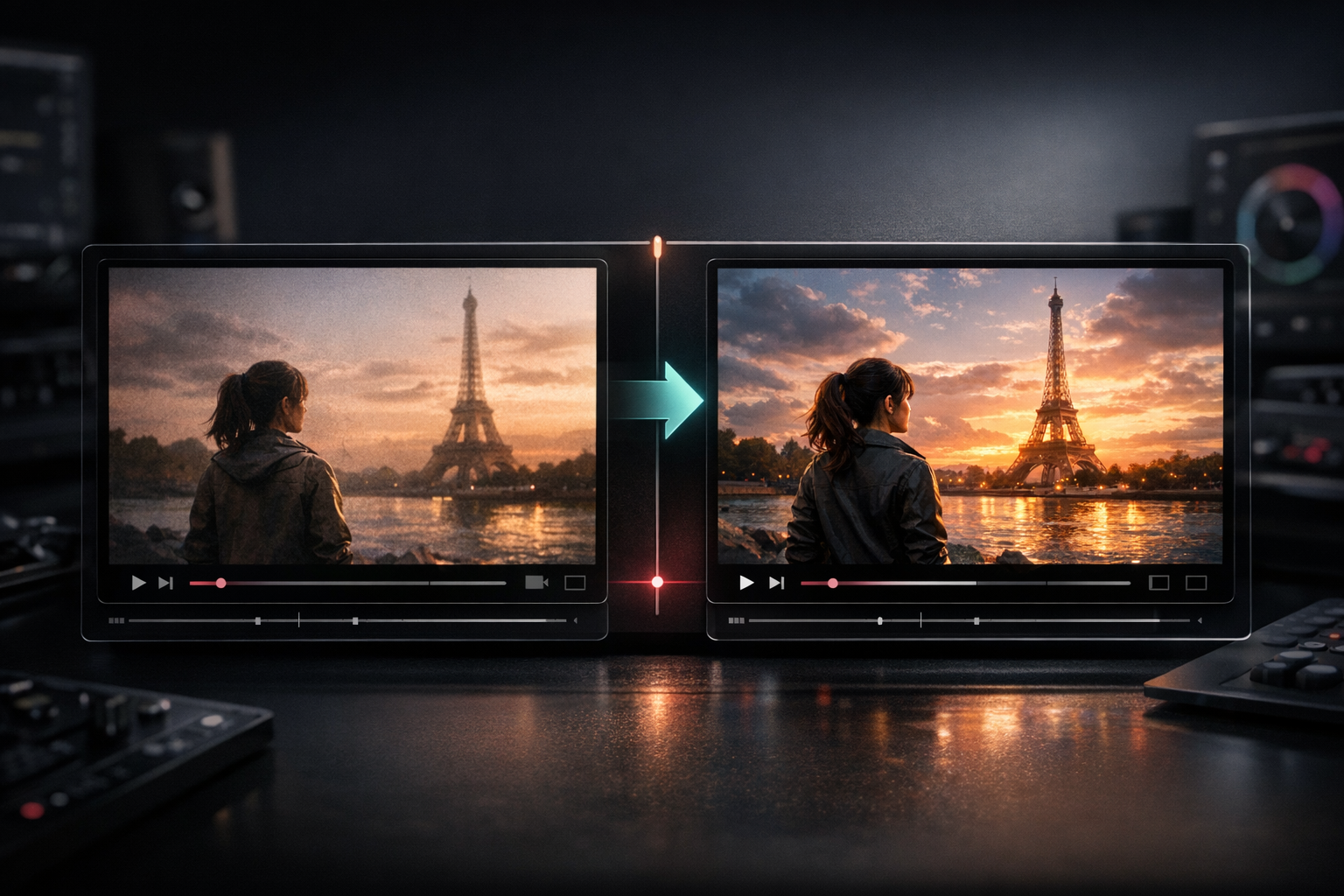
How to Regenerate AI Videos Without Rewriting Prompts

Quick answer
To regenerate AI videos efficiently, reopen a previous generation with the original prompt and key settings already filled in, then change only one variable before you rerun it. AI Video Maker's recent Generations update does exactly that for eligible text-to-video and short image-to-video jobs, which cuts the friction out of creative iteration because you no longer need to rebuild the prompt, aspect ratio, and core options from scratch.
Why regenerate AI videos instead of starting over
Most teams do not lose time because generation is impossible. They lose time because iteration is messy. Someone finds a promising clip, but the next version requires retyping the prompt, reselecting the model, reloading the image, and trying to remember what changed between version one and version two.
That is why the March 21, 2026 Generations update matters. AI Video Maker added a regenerate flow for supported text-to-video and short image-to-video jobs. In the current implementation, the action sends the previous prompt and generation settings back into the appropriate generator route so the user can rerun or edit from a known starting point.
This matches how short-form creative is actually improved. Google Ads recommends testing different YouTube Shorts creatives, favors vertical 9:16 assets for Shorts placements, and recommends keeping the creative short and social-first. A regenerate workflow is useful because it lowers the cost of testing multiple variants without losing the structure of the winning idea. (Source: Google Ads Help)
Entity definitions
- Regenerate AI videos: Re-open a prior generation with its prompt and core settings prefilled so you can run a new version faster.
- Creative iteration: A structured process of changing one variable at a time so you can identify what improved or hurt performance.
- Eligible generation: A prior job that the product can map back into the generator with enough saved data to rebuild the form state correctly.
How to regenerate AI videos in a controlled workflow
1. Start from an existing result that is already close
The regenerate feature is most valuable when the original output is directionally correct. If the subject, motion style, or shot type is completely wrong, rewriting from zero is often faster.
Use regenerate when one of these is true:
- The concept is right, but the hook needs to be stronger.
- The timing works, but the framing should be vertical instead of landscape.
- The motion is close, but the prompt needs a more specific action verb.
- The reference image is good, but the generated movement feels too static or too chaotic.
In other words, regenerate AI videos when the task is refinement, not reinvention.
2. Use the saved setup as your control version
In AI Video Maker's current flow, the regenerate action reconstructs the generator state with the previous prompt and supported settings such as model source, aspect ratio, duration, resolution, and quality when they are available from the original job.
That matters because a good control version makes comparison possible. Without a reliable starting point, teams often "improve" a clip by changing five things at once and then cannot tell why the next result worked.
A clean workflow is:
- Open the previous generation from your history.
- Hit regenerate.
- Confirm the loaded prompt and options.
- Change exactly one variable.
- Run the next version.
If you want to regenerate AI videos without confusion, this is the habit that matters most.
3. Change one variable at a time
The best regenerate loop is boring on purpose. Pick one dimension and test it in isolation.
Good single-variable tests:
- Change the opening phrase of the prompt.
- Change the camera direction from static to slow push-in.
- Change the aspect ratio from
16:9to9:16. - Change the reference image while keeping the prompt stable.
- Change the duration only after the first five seconds already work.
Bad multi-variable test:
- New prompt, new image, new duration, new aspect ratio, different style language, and different output target all in the same rerun.
When you regenerate AI videos this way, each version teaches you something instead of producing noise.
4. Match the rerun to the distribution context
Creative iteration should follow the channel, not your internal preference.
Google Ads says YouTube Shorts ads perform best with vertical assets, recommends short, engaging creative, and notes that only the first 60 seconds play inside the Shorts feed even though the asset can be longer. That is a strong reason to test the first seconds of the clip aggressively. (Source: Google Ads Help)
TikTok's advertising policy documentation also stresses that ad language and related elements should match the target market and that subtitles should be included when needed for the target market. If you are iterating on multilingual creative, regenerate is useful because you can keep the winning visual structure while updating language or on-screen context. (Source: TikTok Ads Policy)
Use this decision frame:
- Test structure first: prompt, motion, framing.
- Test localization second: captions, voiceover plan, market fit.
- Test scale last: length, higher resolution, paid distribution.
5. Know when regenerate is the wrong tool
Do not use regenerate as a substitute for concept development. Starting over is usually better when:
- The previous clip solved the wrong user problem.
- The scene is visually crowded and needs a simpler idea.
- The reference image is weak enough that every rerun inherits the same flaw.
- You are switching from organic social content to product demo content with a different message.
Regenerate AI videos when you already have a promising direction. Start fresh when the direction itself is suspect.
Optimization and publishing notes
If you publish a tutorial about regenerating AI videos, make the workflow explicit. Google's helpful content documentation recommends thinking about "Who, How, and Why," and Google's AI features guidance says textual clarity, internal links, crawlability, and visible structured content still matter for inclusion in AI-powered search experiences. There is no separate secret markup for AI Overviews or AI Mode. (Sources: Google Search Central, Google Search Central)
That is why this page focuses on:
- What changed in the product.
- Which jobs the flow is best for.
- How to compare versions cleanly.
- Where to go next inside the product, such as Text to Video, Image to Video, or the broader Blog library.
Recommended AI Video Maker tools
- Text to Video when you want to rerun a prompt-led concept quickly.
- Image to Video when you need to preserve the core visual and test motion variants.
- Blog for more workflows around AI video production, optimization, and publishing.
Frequently Asked Questions
Does regenerate AI videos mean the output will be identical?
No. The point is not to create a byte-for-byte duplicate. The point is to reopen the original setup so you can create a controlled new variant without rebuilding the form manually.
What kinds of generations are best for regenerate?
It is best for jobs that already have the right concept and enough saved context to make iteration meaningful. In practice, that usually means prompt-led text-to-video or short image-to-video work where the next version is a refinement.
What should I change first when I regenerate AI videos?
Change the hook, framing, or motion instruction first. Those usually have more impact on watchability than minor descriptive adjectives buried later in the prompt.
Can regenerate help with multilingual or market-specific versions?
Yes, especially when the visual structure already works. TikTok's ad policy guidance makes target-market language consistency important, so regenerate is a practical way to keep the winning visual setup while adapting the language or message for another audience.
When should I stop regenerating and start over?
Stop regenerating when each rerun keeps inheriting the same core weakness. If the idea, reference image, or core scene is wrong, a fresh concept will usually outperform endless small edits.