.png)
No-Watermark AI Video Maker: How to Go From Free Drafts to Commercial-Ready HD
In the world of content creation, especially for social media, videos are the ultimate format for engagement. But creating high-quality videos can be expensive and time-consuming. Enter AI video makers—tools that help you generate videos from scratch or transform existing assets into polished, shareable clips. They make video creation accessible, faster, and more cost-effective.
However, a common challenge many creators face is how to transition from free drafts (which often come with watermarks) to commercial-ready HD versions. While it’s tempting to create drafts quickly and get feedback, most creators know the struggle of dealing with watermarked content when it's time to scale up for paid ads or brand partnerships.
This article will walk you through an efficient workflow that uses free drafts for ideation and then upgrades the best ideas into HD no-watermark videos that you can use commercially. Whether you’re working on marketing campaigns, social media ads, or branded content, this strategy will help you optimize your AI video creation process and make the most out of your credits and budget.
1) The Workflow: Draft-First, Then Upgrade

The most efficient workflow when using AI video tools is not to pay for everything upfront. Instead, start by generating free drafts and testing to find out which concepts perform the best, then upgrade only the winning clips to commercial-ready quality. This process ensures you maximize both creativity and ROI.
Here’s the step-by-step process:
Step 1: Generate Free Drafts
Start by creating several drafts with a free or low-cost version of the AI video maker. These drafts don’t need to be perfect—they just need to give you an idea of whether your creative concept works.
· Focus on variations: Create 5–10 different drafts with different angles, hooks, pacing, or even video lengths.
· Use AI’s watermark option: The watermarked versions are fine for testing and internal review.
· Don’t worry about perfection: The goal is to validate the concept and gauge engagement potential. You'll refine it later.
Pro tip: Use shorter video lengths (6-10 seconds) for initial drafts. These are easier to test for engagement, and shorter videos often perform better on platforms like TikTok and Instagram Reels.
Step 2: Test and Validate
Once you’ve generated your drafts, test which videos get the best reactions or show the most promise.
· Upload to platforms: You can use platforms like TikTok, Instagram, or Facebook to check how different versions perform.
· Measure engagement: Pay attention to CTR (click-through rates), views, watch time, and interaction rates.
· Gather feedback: If possible, ask your audience or team for feedback on which drafts feel most engaging, realistic, or attention-grabbing.
Step 3: Upgrade Winning Videos to HD
Once you've identified the top-performing drafts, it’s time to upgrade them to no-watermark HD versions.
· Select your winners: Choose the top 1–3 drafts that performed best in terms of engagement and feedback.
· Export in HD: Now, export these drafts at 1080p resolution with no watermark.
· Commercial rights: When you export HD videos, ensure you have the commercial usage rights (usually part of the paid plan) to use them in ads or on branded channels.
By following this workflow, you only pay for what works, ensuring you don’t waste money on videos that don’t resonate with your audience.
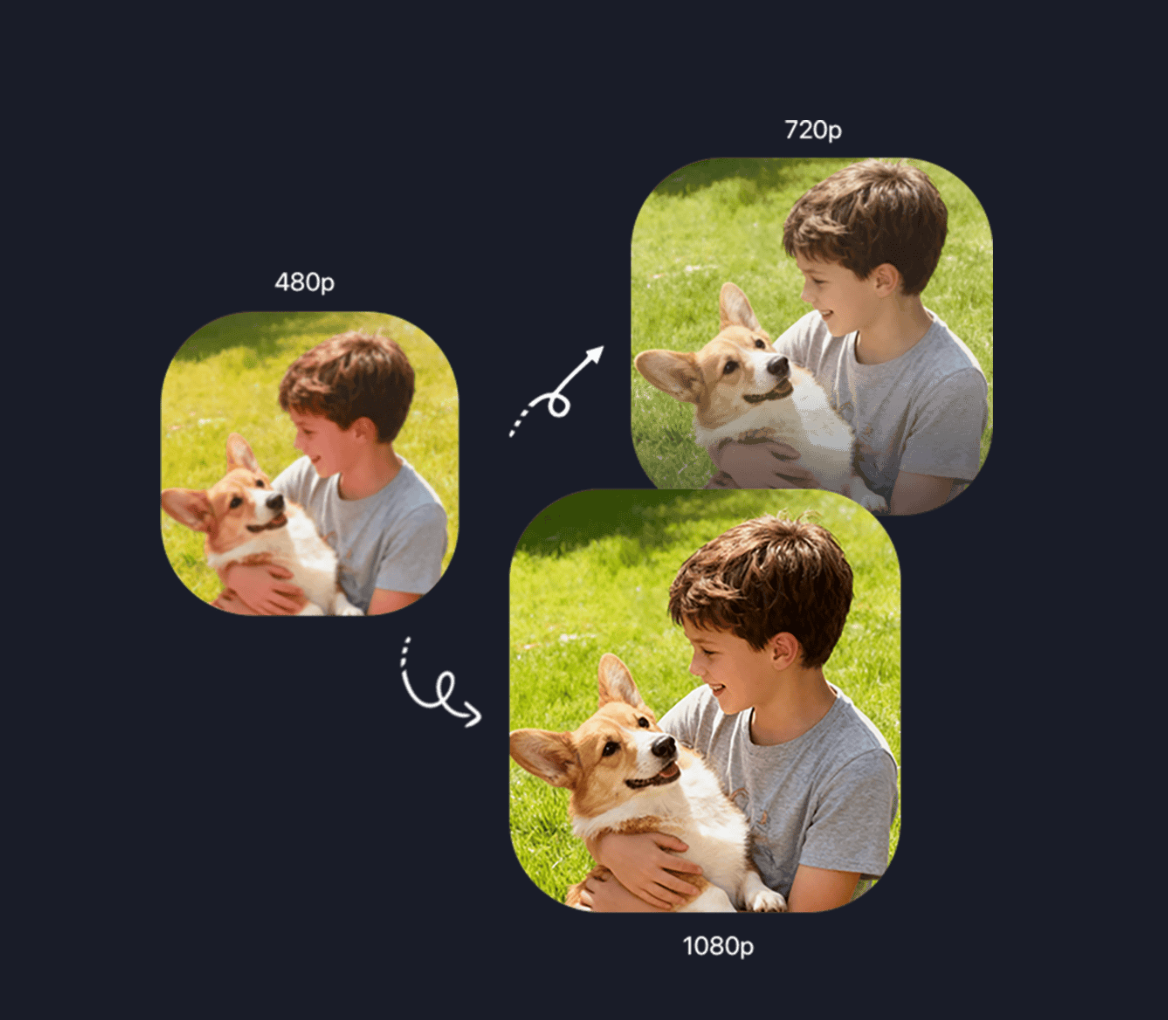
2) Choosing the Right Resolution: 480p vs 720p vs 1080p
When working with AI video makers, it’s important to understand the different resolutions available and know when to use each.
480p: Drafting and Testing
· Best for: Early drafts and concept validation.
· Pros: Fast export, low resource usage, and quick feedback.
· Cons: Low resolution, so not suitable for final output.
Use 480p when you’re testing ideas, trying new hooks, or simply getting a feel for the video. It’s a great option to iterate on variations without worrying about quality.
720p: Publish-Ready for Organic Posts
· Best for: Organic social media posts, simple ads, and low-budget campaigns.
· Pros: Higher resolution than 480p, but still quick to export.
· Cons: May not meet the standards for premium ads.
720p is a good middle ground. It’s acceptable for many organic posts or testing phases, but you’ll want to upgrade for paid, high-impact ads.
1080p: Commercial-Ready, High-Quality Output
· Best for: Final commercial ads, YouTube videos, and high-visibility brand campaigns.
· Pros: High resolution, perfect for professional, polished videos.
· Cons: Slower export time, but worth it for the quality.
You’ll want to upgrade to 1080p when you’re ready to scale and use videos for paid ads, client work, or branded content. The high resolution makes a big difference in terms of professional appearance and viewing experience, especially for mobile screens.
3) Commercial Usage Rights: Why They Matter
Many AI video tools offer free versions with watermarks, but they often come with restrictions. Once you decide to scale your content and use it for commercial purposes, usage rights become a key factor.
Free Drafts and Watermarks
· Use for internal testing and informal campaigns.
· Watermarks typically make them unsuitable for commercial work, as they could dilute brand perception.
Upgraded Versions: No Watermark + Commercial Rights
· Remove the watermark to present a polished, professional final product.
· Commercial usage rights allow you to use the video for advertising, social media marketing, brand promotions, and even client projects.
How to Manage Your Credits:
When you upgrade to HD versions, you’ll usually need to buy credits or move to a paid plan. Be mindful of:
· Credit usage for each video export (usually based on resolution or video length).
· Usage limits: Some plans might have monthly or annual limits for HD exports.
Maximize your budget by testing ideas with free drafts and only upgrading the best concepts that align with your commercial goals.
4) Key Considerations for Upgrading to HD
When upgrading your AI-generated drafts to commercial-grade HD videos, make sure to consider the following:
A) Platform Requirements
Different platforms (TikTok, Instagram, YouTube, etc.) have their own video specifications. For example:
· TikTok: 9:16 aspect ratio, under 60 seconds.
· YouTube: Horizontal video with 16:9 aspect ratio, longer duration allowed.
· Instagram: 1:1 square format for the feed, 9:16 for Stories.
Ensure your HD videos meet these requirements for optimal performance.
B) Editing for Consistency
Once you have your HD version, you might need to make final edits:
· Add captions for accessibility.
· Include logo overlays for branding.
· Cut down length to fit specific ad formats or storytelling styles.
Editing tips: Keep in mind that high-quality exports also mean more editing options for things like b-roll, transitions, and effects.
5) Exporting at 1080p and Beyond: Why 4K Might Not Always Be Necessary
While 4K video is great for visual quality, it’s often overkill for social media ads or even most commercial work, especially when targeting mobile users. Here's why:
· File size: 4K videos have huge file sizes, making them harder to upload and slower to buffer on mobile devices.
· Diminishing returns: On small mobile screens, the difference between 1080p and 4K is negligible to most viewers.
· Editing needs: With 4K, you often have to crop or zoom into specific sections, which may reduce the original image quality.
That said, 4K is useful when creating content for:
· High-quality product showcases on large screens (e.g., TVs, trade shows).
· Photography-heavy content where every detail matters.
· Documentaries or cinematic content where clarity is paramount.
For most AI video projects focused on quick, engaging content for social platforms, 1080p is generally good enough.
6) How to Maximize Credits and Budget Efficiency
To make the most of your credits and budget, here’s a strategy to follow:
A) Test with Low-Resolution Drafts
Start with 480p drafts for testing, then move to 720p or 1080p for the best performers. This ensures you only use high-resolution exports for videos that have already shown promise.
B) Use Bulk Credits for Volume
Many platforms offer bulk credit discounts. If you know you’ll be scaling campaigns, buy credits in advance and use them efficiently across multiple videos.
C) Repurpose and Refresh Content
Instead of starting from scratch each time, refresh your existing videos by making small changes: new CTAs, slight adjustments to pacing, or different captions. This lets you get more value out of each video asset.
Suggested Internal Links (Anchor Text Ideas)
· AI UGC video generator
· text to video generator
· image to video animation
· AI video maker pricing
Conclusion
The best AI video creation workflows balance speed and quality. Starting with free drafts and then upgrading to no-watermark HD versions for your best-performing ideas ensures that you save both time and money. By carefully choosing when to upgrade and considering platform specifications and commercial rights, you can maximize your budget and create professional-quality videos at scale.
This workflow not only works for marketing campaigns but also sets you up for success when scaling your content creation efforts in 2026 and beyond.