.png)
AI Video Maker FAQ & Troubleshooting: Fix Common Issues and Improve Output Quality (2026)
AI video creation is faster than traditional editing—but it can still feel unpredictable. You type a prompt, and sometimes the result is great. Other times you get weird motion, flickering, distorted hands, inconsistent scenes, or a script that sounds like a robot reading a landing page.
The good news: most “bad outputs” come from a small set of recurring issues. Once you know what they are, you can fix them quickly and create a repeatable workflow that produces high-quality, scroll-stopping videos on demand.
This article is a practical FAQ + troubleshooting guide for AI video makers in 2026. It covers the most common problems with text-to-video, image-to-video, and UGC-style ads—plus specific fixes you can apply immediately.
1) FAQ: “Why does my AI video look generic?”
What’s happening
Your prompt is describing an idea instead of a visual. AI video models respond best to concrete scenes, actions, camera language, and lighting.
Fix
Use this 5-part prompt formula:
Subject + Action + Environment + Camera/Motion + Style/Lighting
Example upgrade:
· Generic: “Make a video about my skincare product.”
· Better: “Hands applying a small serum bottle at a bathroom sink, close-up demo, soft window light, handheld phone camera, realistic UGC style, vertical 8 seconds.”
Also add one micro-detail:
· “freshly washed face”
· “a small towel on the counter”
· “morning light”
Micro-details reduce “stock video vibes.”
2) FAQ: “Why is the motion weird or jittery?”
What’s happening
Your prompt has too many motion instructions, or the tool tries to animate multiple elements at once.
Fix
Pick one motion style per clip:
· “slow dolly-in”
· “subtle handheld shake”
· “parallax depth effect”
· “fast jump cuts”
Keep it simple. For realism, “subtle” is often better than “dynamic.”
Better motion prompt:
“Subtle parallax depth, slow push-in, smooth motion, realistic lighting, vertical 6 seconds.”
Avoid stacking:
“zoom + rotate + shake + particles + fast cuts” all in one clip.
3) FAQ: “Why do faces/hands look distorted?”
Hands and faces are still the hardest details for generative video—especially if the source image is low quality or the scene is complex.
Fix (Image-to-video)
· Use a high-resolution input image with clear lighting.
· Avoid crowded backgrounds.
· Use “hands partially visible” instead of “hands close-up typing quickly” if it keeps breaking.
· Keep prompts short and realistic.
Fix (Text-to-video)
· Switch to scenes that do not require detailed hands:
o product on table rotating
o over-the-shoulder shot
o macro shot of product texture
· If you need hands, reduce complexity:
o “hands holding product steadily”
o “slow movements”
Bonus tip: if a shot keeps failing, don’t fight it. Redesign the storyboard so you can show proof without risky visuals.
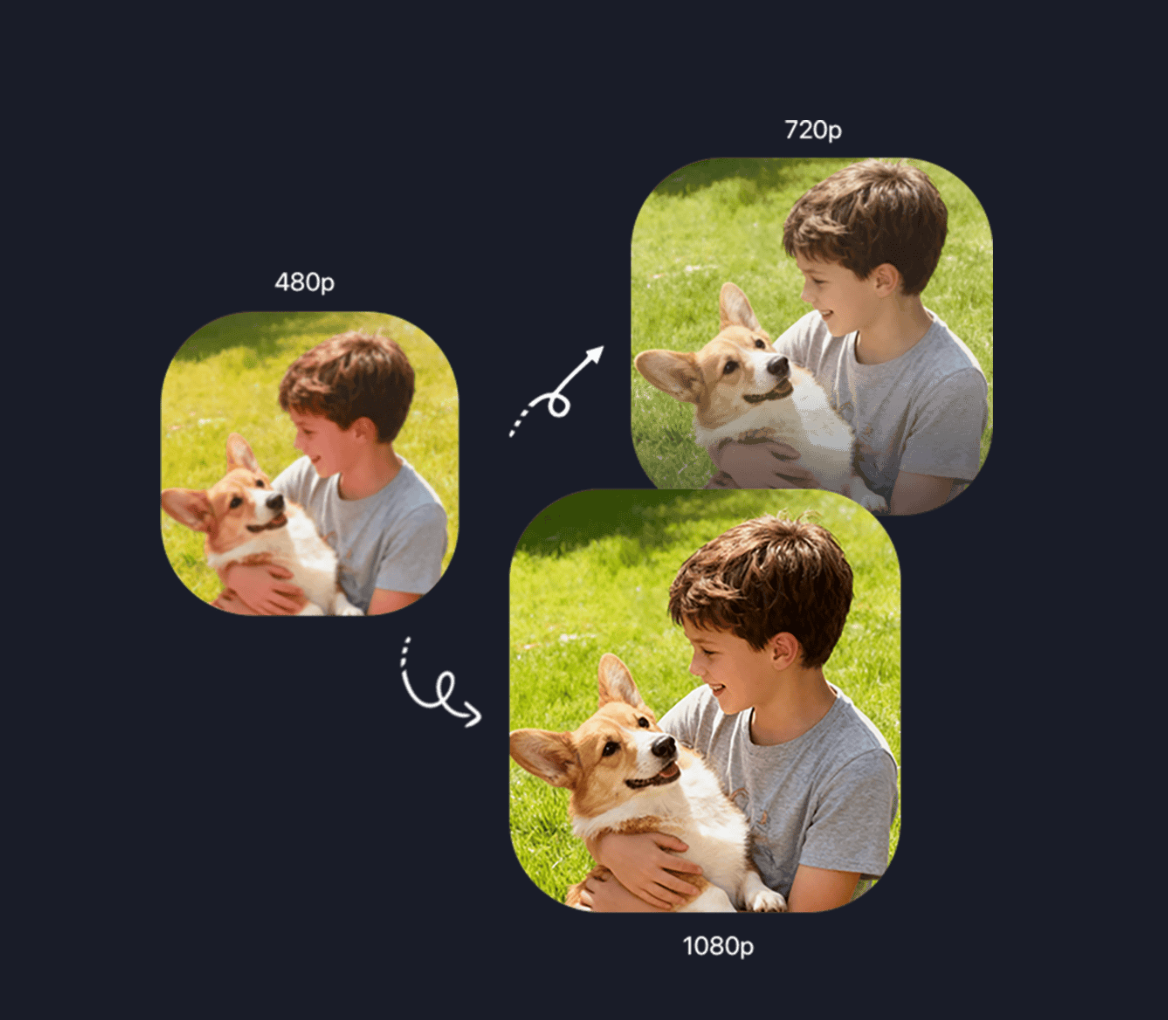
4) FAQ: “Why is my video blurry or low quality?”
What’s happening
You may be previewing in a draft resolution, or your source assets are low quality.
Fix
· Draft in lower resolution to iterate quickly, but export winners in higher resolution when publishing.
· Use clean, high-quality input images (for image-to-video).
· Avoid overly dark scenes; bright, natural lighting tends to render clearer.
Practical workflow:
· Draft → evaluate hook + message clarity
· Upgrade → export HD for publish/ads
This prevents wasting credits/budget on ideas that don’t perform.
5) FAQ: “My UGC ad feels fake. How do I make it more authentic?”
What’s happening
UGC fails when it sounds like marketing. The script is too polished, too general, or makes big claims without proof.
Fix: Use “spoken language rules”
· Short sentences.
· One main claim.
· One proof moment.
· Add a personal micro-detail.
Example rewrite
Marketing: “Our product delivers amazing results quickly.”
UGC: “I tried this because I was tired of wasting time. The first thing I noticed was how fast it works—look.”
Fix: Add proof
· demo step
· timer
· before/after
· comparison
· screen recording
If you can’t show proof, lower the claim.
6) FAQ: “My scenes look inconsistent from clip to clip.”
What’s happening
You’re generating multi-scene videos without consistent descriptors, so the model changes characters, styles, or environments.
Fix: Build a “scene pack”
Use the same character and environment description in every scene.
Example consistency anchor:
· “young woman, casual outfit, bright modern kitchen, handheld phone camera, natural daylight, realistic UGC style, vertical”
Then write:
· Scene 1/4: problem moment
· Scene 2/4: discovery
· Scene 3/4: demo
· Scene 4/4: result + CTA
If you generate separate clips, stitch them afterward—but keep the anchor consistent.
7) FAQ: “My ad has low CTR. What should I change first?”
Start with the first 2 seconds (always)
Before rewriting the whole script, test a new hook.
Hook testing is the highest-leverage move in short-form ads.
Hook types to rotate:
· Pain: “If you’re tired of X…”
· Curiosity: “I didn’t expect this…”
· Proof: “Watch what happens…”
· Contrarian: “Stop doing X…”
· Story: “I tried this for 7 days…”
Keep the body 70% the same so you can learn what caused improvement.
8) FAQ: “How long should my AI ads be?”
Use this rule of thumb:
· 6–10 seconds: hook tests, top funnel, cheap learning
· 15–30 seconds: scaling winners, explain + proof
· 30–45 seconds: only if the product needs education (and your hook is strong)
If you’re unsure, start with 15 seconds and make a shorter cut from it.
9) FAQ: “Do I need captions? How should I write them?”
Yes—many viewers watch on mute.
· Keep captions short (one line).
· Put the main claim in the first caption.
· Use “spoken” wording, not brand copy.
· Leave safe space at top/bottom so platform UI doesn’t cover text.
Caption examples:
· “I wasted money on this problem for months…”
· “This takes 20 seconds.”
· “Here’s the difference.”
· “I wish I found this earlier.”
10) Troubleshooting Cheatsheet (Fast Fixes)
Problem: Looks generic
Fix: add environment + camera + micro-detail
Problem: Too chaotic
Fix: reduce to one action + one motion style
Problem: Feels fake
Fix: rewrite script in spoken language + add proof
Problem: Scenes inconsistent
Fix: use consistent anchor descriptors in every prompt
Problem: Low CTR
Fix: change hook only, keep body constant
Problem: Low conversion
Fix: add proof + objection handling, clarify CTA
Suggested Internal Links (Anchor Text Ideas)
· AI UGC video generator (your UGC feature page)
· text to video generator (your text-to-video tool page)
· image to video animation (your image-to-video tool page)
· pricing and HD export options (your pricing page)
Conclusion
AI video creation gets dramatically better when you treat it like a system: clear prompts, controlled variations, strong hooks, and proof-driven scripts. When something looks wrong, don’t guess—diagnose the category of problem, apply the quick fix, and regenerate a cleaner version.